How to Update Your Shopify Theme Without Losing Customizations
What Shopify keeps during a theme update, what it does not, and a safe order of work so your customizations survive.
Most store owners have the same reaction when the theme library shows an update available: ignore it. The worry is reasonable, because an update that overwrites two years of custom work would be a bad week. But staying three versions behind has its own costs, and the update process is safer than it used to be, as long as you know what Shopify preserves and what it doesn't. Here's how to do it without losing anything.
What Shopify preserves, and what it doesn't
Shopify's documentation is fairly clear about this. Changes made in the theme editor, such as settings, section layouts, and wording, are "copied over and applied to the updated theme." Code edits are kept "if your code edits don't conflict with the update," and the theme card afterwards shows whether they made it across. If they didn't, you have to copy them into the new version yourself.
Two other points from the same documentation matter before you start. Automatic updates apply only to themes from the Shopify Theme Store, since "Automatic updates aren't supported for uploaded themes," and those automatic updates are for bug and security fixes, which "don't modify the look and feel of your theme or make any changes to your content or settings." Shopify also advises that you "should always save a copy of any customized code before updating your theme."
So the risk is not your settings. The risk is custom code: snippets a developer added, sections built for you, app code that was pasted into theme files, and CSS overrides.
Find out what's actually been customized
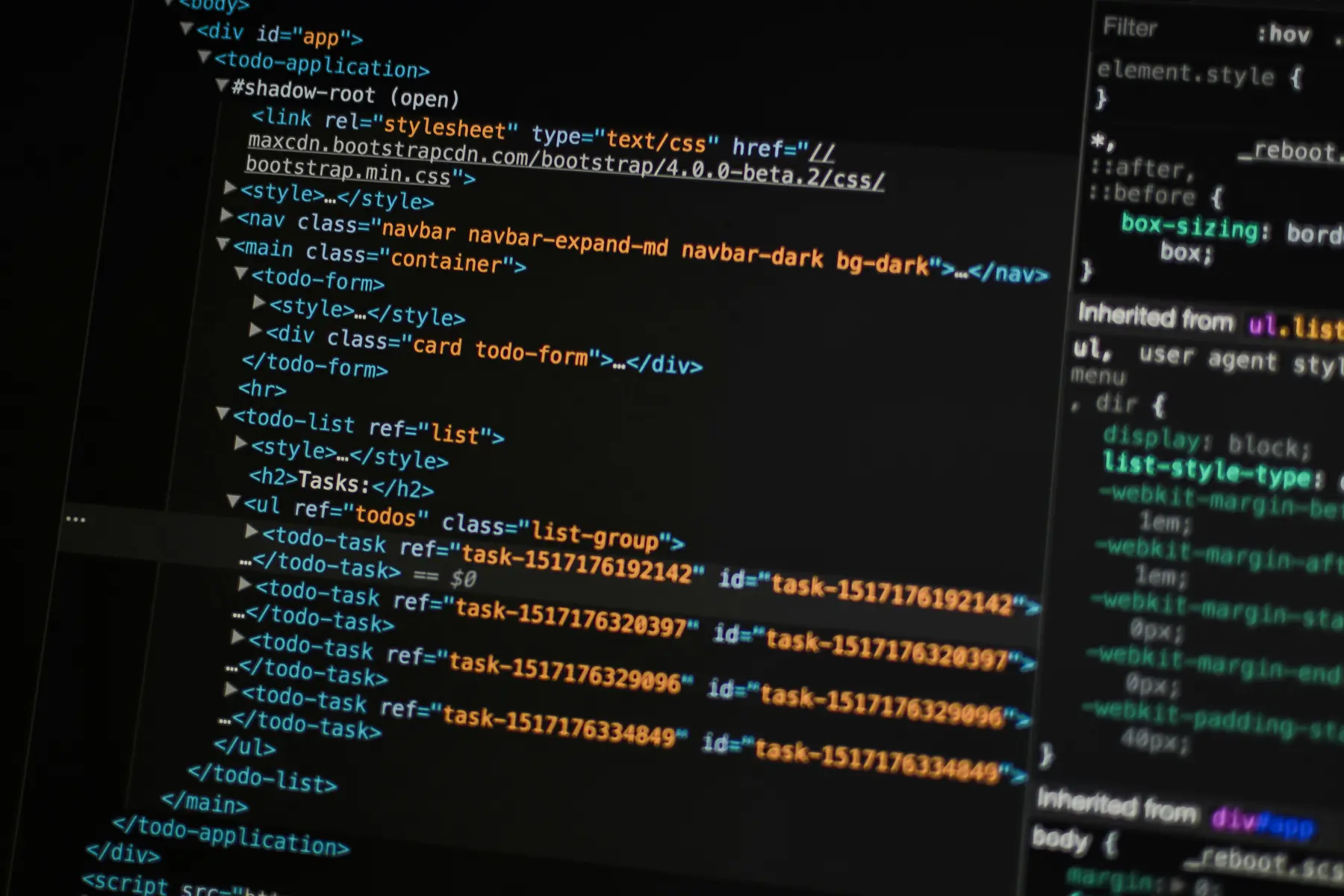
Before touching anything, build an inventory. On a store that's been running a few years, nobody remembers all of it.
Download a copy of your live theme as a zip, so you have the exact current state saved outside Shopify.
Look through the code editor for files that are not part of the stock theme: custom sections, custom snippets, a custom.css or custom.js file.
Search the theme for app references, script tags, and comment blocks left by developers or apps.
Note any edits inside core files such as theme.liquid, the product template, and the cart, since those are where conflicts happen.
Write down what each customization does, in one line. The size guide popup, the B2B pricing rule, the shipping message on the cart.
If your theme is in a Git repository through Shopify's GitHub integration, this step is much easier, because the diff tells you everything. If it isn't, this is a good argument for setting that up before the next update.
Update on a copy, never on the live theme
The update flow in the theme library adds the new version as a draft. In Shopify's words, you click the update notification and choose "Add to draft themes," and the result is named with an "Updated copy of" prefix. Your live theme keeps serving customers the whole time, which is the point.

Work through the draft in this order:
Open the theme card and check whether your code edits were carried across. If some weren't, you'll need to reapply them from the copy you saved.
Read the release notes. They tell you which sections changed, which is where your custom code is most likely to break.
Preview the draft theme and walk the main templates: homepage, collection, product, cart, and a search results page.
Check each customization on your list, one by one, rather than scanning the page and hoping.
Look specifically at custom CSS. Shopify warns that selectors you relied on may not exist in the new version, which is the most common silent breakage.
Watch for schema changes
Shopify notes that changes to a theme's schema, such as altering block limits or where a section can be placed, "might result in an update failure." If a developer edited section schemas to allow more blocks than the stock theme intended, that's a likely source of trouble, and it's worth knowing before you start rather than during.
Test the things that actually make money
Design review is the easy part. The expensive failures are functional, so test them deliberately on the draft theme:
Add to cart, including a product with several variants
Cart updates, quantity changes, and discount codes
Any app that renders on the storefront: reviews, upsells, subscriptions, loyalty
Your tracking: check that purchase events still fire, since a lost snippet here is invisible until your reports look wrong
Forms: contact, newsletter signup, back in stock
The same list again on a phone
Apps built on Shopify's modern framework are less fragile here, since as the developer documentation puts it, "apps built in the theme app extension framework don't edit theme code." Older apps that pasted code into your files are exactly the ones to check.
Publish at a sensible moment
Publish when you can watch the store for an hour or two afterwards, which means not on a Friday evening and not during a sale. Keep the previous theme in your library rather than deleting it, so rolling back is a single click if something turns up that testing missed.
After publishing, check the live site again, because a few things behave differently outside preview: third party scripts, consent banners, and anything that depends on the published URL. Watch your orders for the next day. A quiet morning after a theme change is worth a closer look rather than a shrug.
Make the next update easier
Most of the pain in theme updates comes from how the customizations were added in the first place. A few habits make the difference:
Keep custom code in your own files where possible, rather than scattered through core templates.
Comment your edits with what they do and when they were added.
Use theme app extensions and app blocks rather than pasting app code into templates.
Connect the theme to a Git repository so every change is visible and reversible.
Update more often. Small updates are much easier to review than a jump across several versions.
If you're several versions behind and the theme has years of custom work in it, that update is a project rather than an afternoon, and it's worth having someone go through it methodically. Our team handles theme updates and migrations as part of Shopify development, including rebuilding old customizations in a way that survives the next update.
Quoted guidance above comes from Shopify's help documentation on updating themes and Shopify's developer documentation.